
Every iOS update quietly adds helpful tools and refinements to your iPhone, many of which go unnoticed. These features can make daily tasks faster and more convenient—if you know where to find them. Below are practical tips and built‑in tricks that work on most modern iPhone models and require no extra apps.
Add a Virtual Home Button
Credit: Reddit
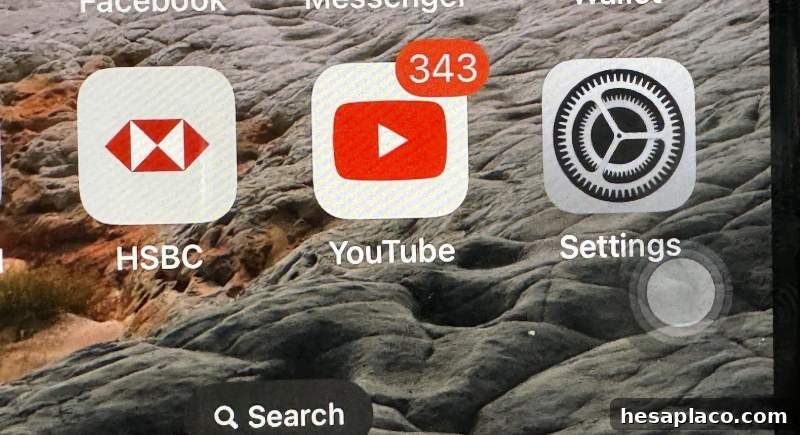
If you miss the tactile Home button, AssistiveTouch recreates a similar experience with a floating on‑screen control. Open Settings > Accessibility > Touch > AssistiveTouch and enable it. The floating button can be customized so a single tap, double tap, or long press performs common actions like returning to the Home screen, opening Control Center, invoking Siri, or taking a screenshot.
Type Instead of Speaking to Siri

Credit: pexels
If talking to Siri feels awkward in public or at work, enable Type to Siri so you can enter requests silently. Go to Settings > Accessibility > Siri and switch on Type to Siri. When you summon Siri, a keyboard appears and you can type commands or queries while Siri responds the same way it does to voice requests.
Use the Camera Flash for Alerts
Credit: Reddit
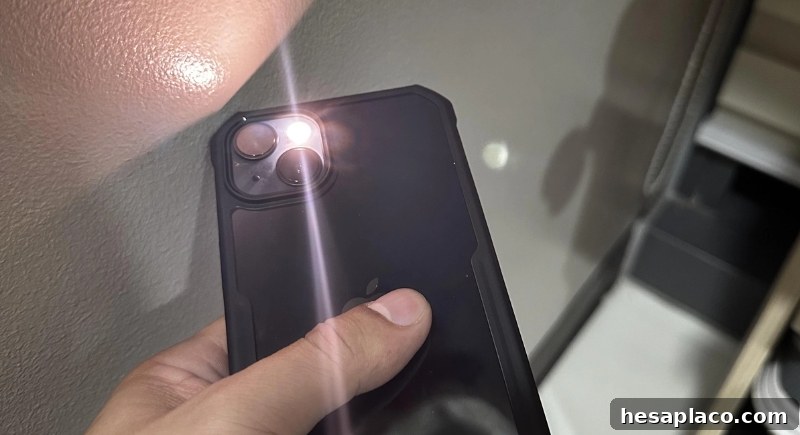
When you might miss sounds or vibrations, the LED flash offers a visual alert. Enable Settings > Accessibility > Audio & Visual > LED Flash for Alerts to make the camera light blink for incoming calls and notifications. It’s especially useful if your phone is on silent or across the room.
Charge Faster in Airplane Mode
Credit: iStockphoto
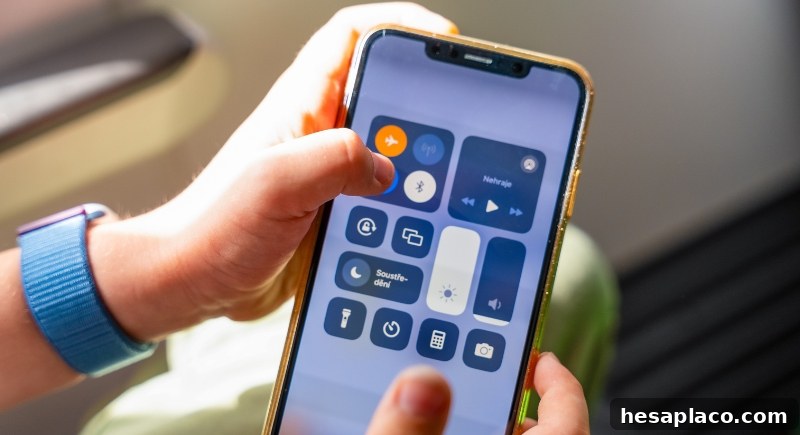
Switching to Airplane Mode while charging reduces background radio activity and can shorten charge times slightly. Toggle Airplane Mode from Control Center or Settings before plugging in. Remember to turn it off after charging so you can reconnect to cellular and Wi‑Fi networks.
Measure Spaces Using the iPhone

Credit: pexels
The Measure app has grown beyond a level and ruler. On iPhones with LiDAR (and many recent models without it), Measure can detect and scan objects or rooms, estimate lengths, and calculate surface areas. Open the Measure app, follow the on‑screen instructions to point the camera, and use the tool to capture dimensions for quick home projects without a tape measure.
Stop Closing Apps to Save Battery
Credit: Canva
Many people force‑quit apps thinking it saves power, but iOS manages background processes efficiently. Forcing apps closed can make them reload from scratch later, using more battery and data. Generally, leave apps paused unless an app is misbehaving; the system handles resource allocation to balance performance and battery life.
Take Photos with Volume Buttons
Credit: pixabay
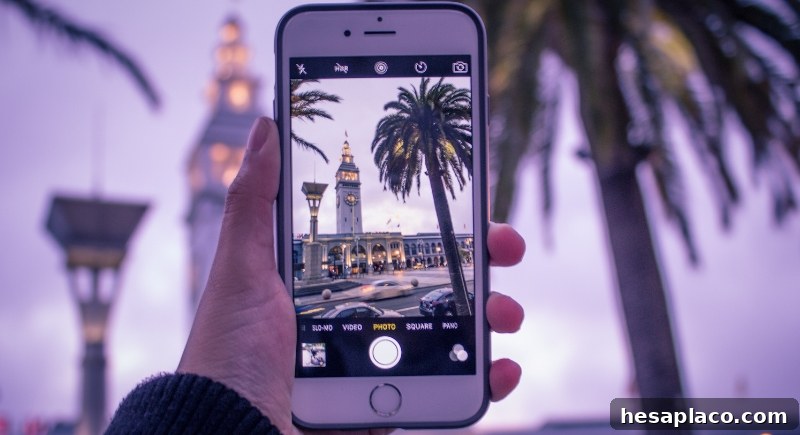
To steady your shots, use the physical volume buttons to capture photos instead of the on‑screen shutter. You can also use wired headphones with a built‑in remote to trigger the shutter remotely, which helps with group photos or low‑angle shots when you can’t reach the screen.
Activate Dark Mode Options
Credit: iStockphoto
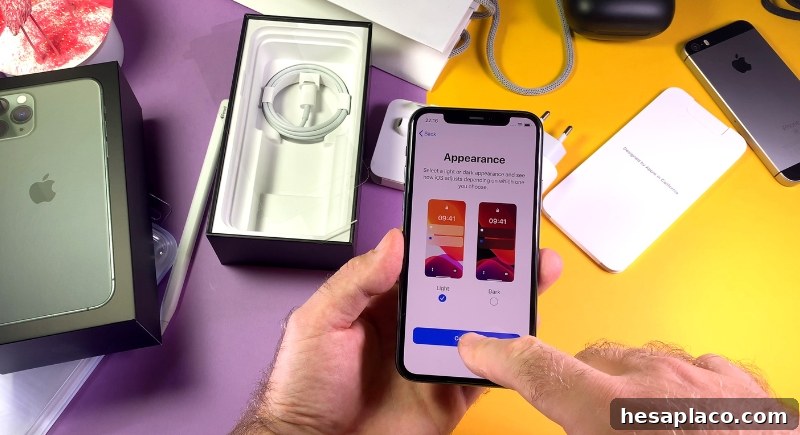
Beyond the standard Dark Mode setting, Apple provides Smart Invert and Classic Invert under Settings > Accessibility > Display & Text Size. Smart Invert reverses colors but preserves images and media, while Classic Invert flips all colors. These options help reduce glare or make text easier to read for users with light sensitivity.
Turn Your Keyboard into a Trackpad
Credit: Youtube
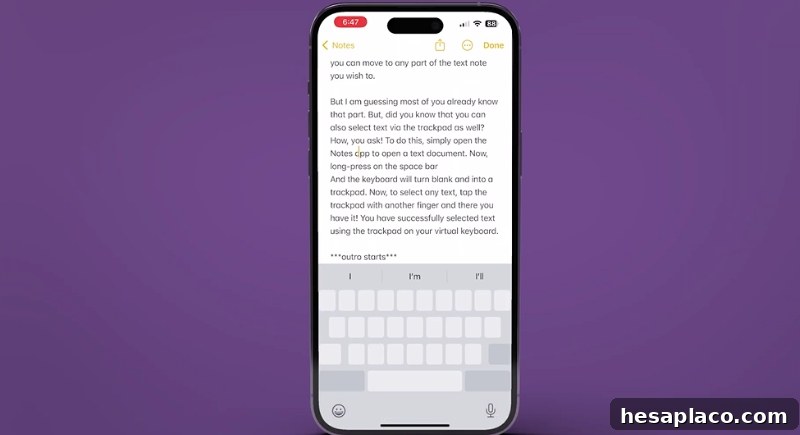
Precise text editing is easier when the keyboard becomes a trackpad. Press and hold the space bar and the keys dim into a trackpad interface, letting you move the cursor smoothly and select text without tapping repeatedly. It’s a fast way to correct mistakes or reposition the cursor while composing messages or documents.
Ask Siri to Ready the Camera
Credit: pexels
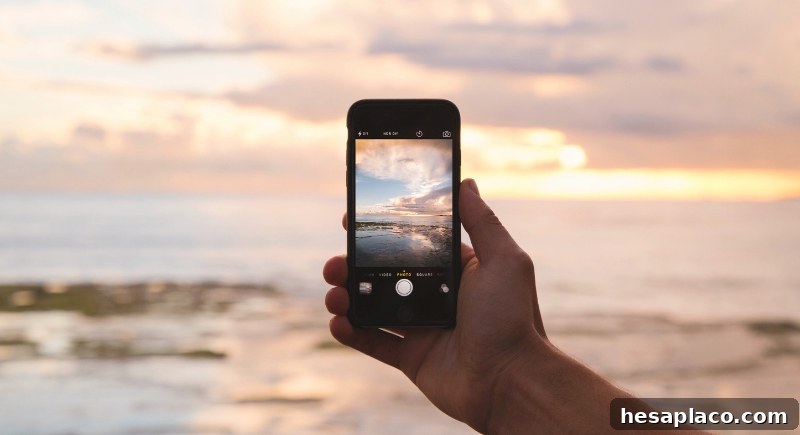
If your hands are full, Siri can open the Camera app in a specific mode for you. Say “Hey Siri, take a selfie” or “Hey Siri, record a video” and the Camera opens directly to that mode. You’ll still need to press the shutter or use a volume button to start recording, but it saves a step when you’re multitasking.
Scan Documents in the Notes App

Credit: Canva
Notes includes a built‑in document scanner that creates clean PDFs from pages, receipts, or forms. In Notes, create a new note, tap the camera icon, and choose Scan Documents. The app automatically detects page edges, captures the image, and lets you crop or save the scan as a PDF—handy for quick paperwork without a dedicated scanner.
Set Music to Stop on a Timer
Credit: Reddit
Want audio to stop automatically after you fall asleep? Open the Clock app, go to Timer, set the duration, tap When Timer Ends, and choose Stop Playing. Start the timer and your music, podcast, or audiobook will stop when the timer ends—no need to worry about draining the battery overnight.
Stack Widgets on Your Home Screen
Credit: pexels
To save space and keep useful widgets handy, create a widget stack. Press and hold a widget until it jiggles, then drag it over another widget of the same size and release. You can swipe through the stacked widgets in one spot, and Smart Stacks even rotate widgets based on time of day and usage patterns.
Ping Your iPhone with Siri
Credit: Reddit
Lost your phone at home? If you have a paired device that can reach Siri, ask Siri on that device to “Find my iPhone” or to turn on the flashlight. The phone will light up and, if set to make sound, will play a ping even when silent—helpful for locating it under cushions or behind objects.
Convert Text Easily on the Keyboard
Credit: Reddit
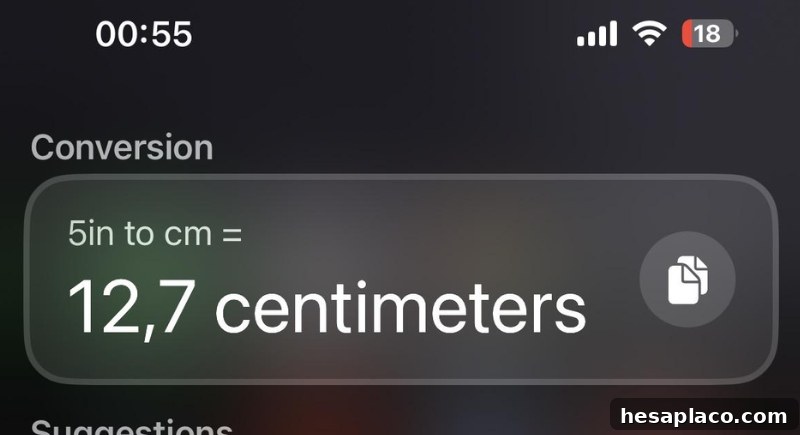
iOS supports quick inline conversions and special characters without extra tools. Highlight numeric units like “10 cm” in text to reveal conversion options for inches or feet. Long‑press keys such as the zero to access degree symbols or other alternate characters. These shortcuts speed up typing and reduce the need to switch apps for simple tasks.
Explore these built‑in options to get more from your iPhone without installing anything extra. Many of these small adjustments add up, saving time and making common tasks smoother—once you know where to look.