You might think you know your iPhone inside out, but it holds many helpful functions tucked away behind menus you rarely open or just a couple of taps from your home screen. Some features make everyday tasks faster, others remove little annoyances, and a few are genuinely surprising when you discover them. Below is a clear, user-friendly guide to practical iPhone tips that save time, reduce friction, and help you get more from your device.
Create Custom Vibrations for Contacts
Credit: flickr
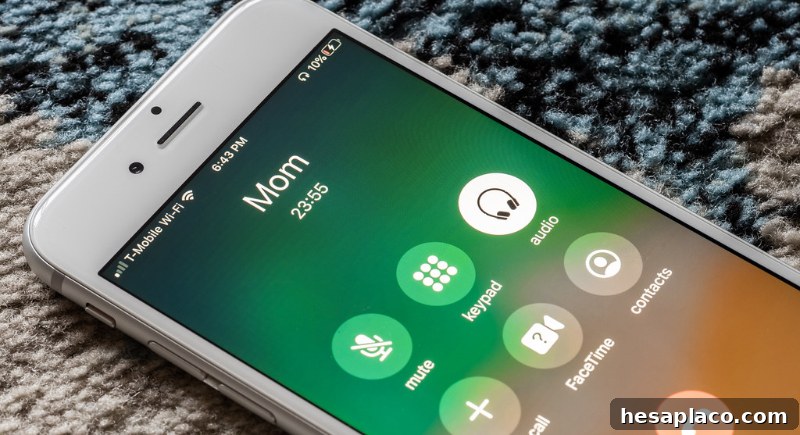
If you keep your phone on silent or vibrate most of the time, custom vibrations let you know who’s calling without looking. Open a contact, tap Edit, then choose Ringtone or Text Tone and tap Vibration followed by Create New Vibration. Tap a pattern and save it. Assign different vibration patterns to important contacts so you can identify callers or texters discreetly—useful during meetings, at the cinema, or whenever your phone is out of sight.
Take a Photo While Recording Video

Credit: pexels
Want to capture a still image while filming? While recording video in the Camera app, tap the small white shutter button next to the red record button to snap a photo without interrupting the video. The still image may not match a dedicated photo taken in photo mode, but it’s a fast way to capture a moment without stopping your recording.
Copy Text Using Your Camera Lens
Credit: Youtube
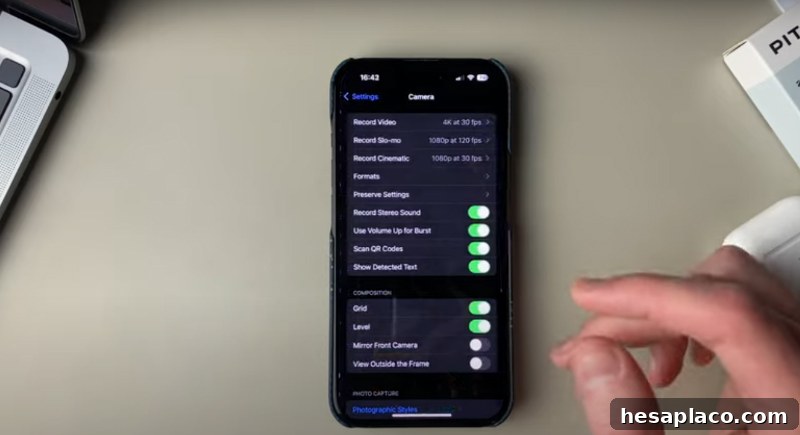
Live Text (iOS 15 and later) recognizes printed and many handwritten words through the Camera app. Aim at any text—recipes, signs, business cards, or documents—and visible brackets indicate selectable text. Tap the text icon and copy, paste, or interact with the words directly, saving you from retyping information.
Turn on “Late Night” for Louder Music
Credit: Reddit
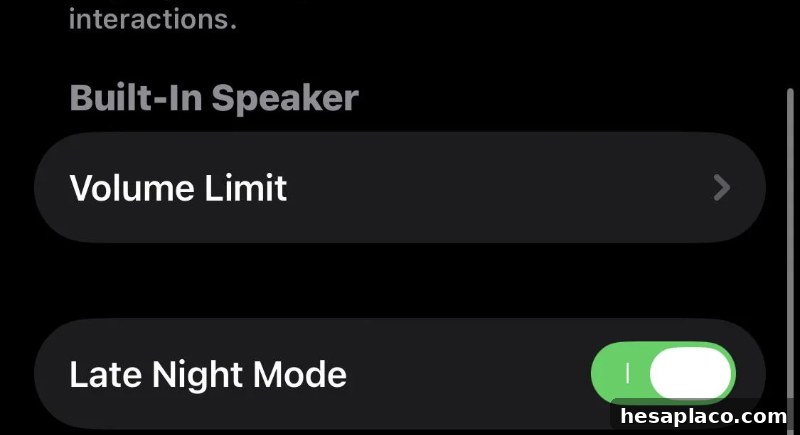
If songs sound too quiet even at high volume, try the Late Night EQ. Go to Settings > Music > EQ and choose Late Night. This preset raises quieter sounds and compresses dynamics so tracks play louder overall. It applies to audio that uses your device’s system settings and can help you hear playlists better in noisy environments without drastically increasing peak volume.
Use a Timer to Stop Music Automatically
Credit: Youtube
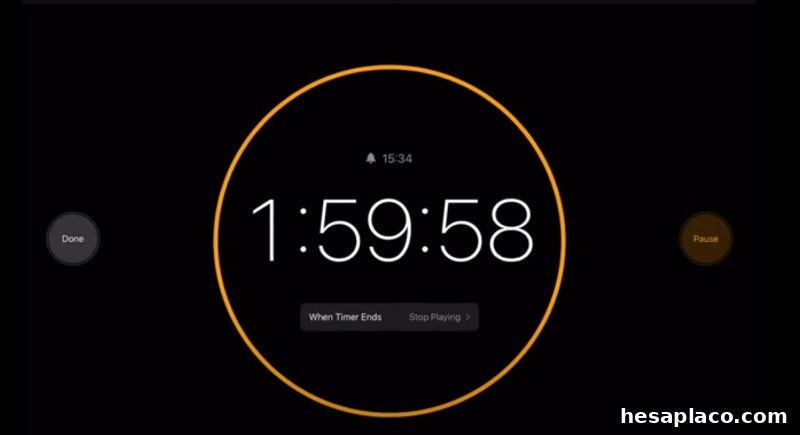
Falling asleep with music or a podcast? Open the Clock app, select Timer, set the duration, tap When Timer Ends, scroll to the end of the list, and choose Stop Playing. When the timer ends, audio playback stops automatically, so you won’t wake to an audiobook or playlist still running through the night.
Stack Home Screen Widgets to Save Space
Credit: pexels
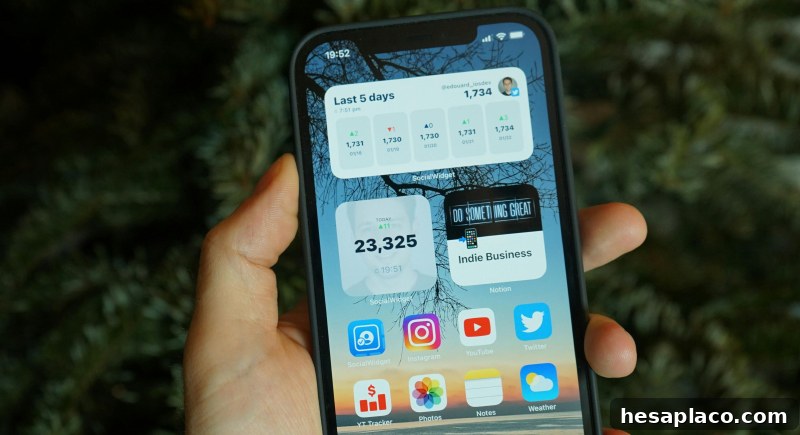
To keep your home screen organized, combine widgets into a stack. Long-press a widget, drag another widget of the same size on top of it, and iOS will create a scrollable stack. Swipe through them when you need a specific widget, or enable Smart Rotate so widgets cycle based on time of day, location, or usage—an efficient way to maximize screen space.
Measure Objects Without a Ruler
Credit: Youtube
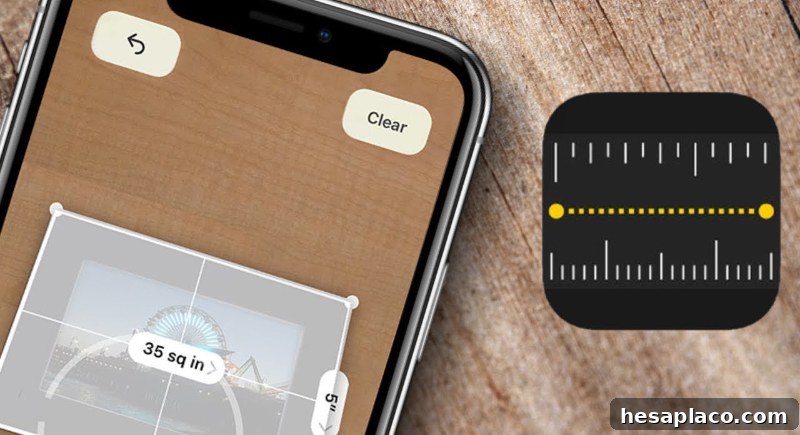
When you don’t have a measuring tape handy, open the Measure app. Point the camera at the object, drop start and end points, and the app will estimate length and dimensions. It’s not as precise as a physical ruler but works well for quick checks like confirming if a piece of furniture fits a spot or estimating package size.
Reply Directly to Messages in Busy Threads
Credit: Youtube
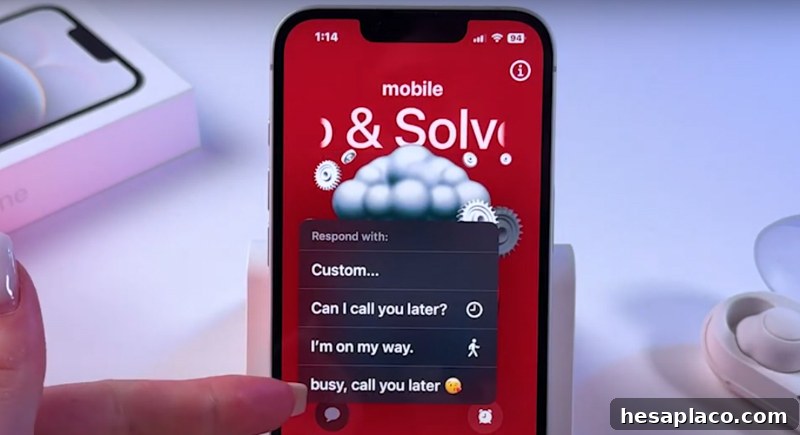
Group chats can get confusing. Use inline replies to keep conversations organized: press and hold the message you want to reply to and tap Reply. Your message will appear threaded under the original, making it easier to follow specific topics within busy discussions.
Add a Hidden Home Button With AssistiveTouch
Credit: Youtube
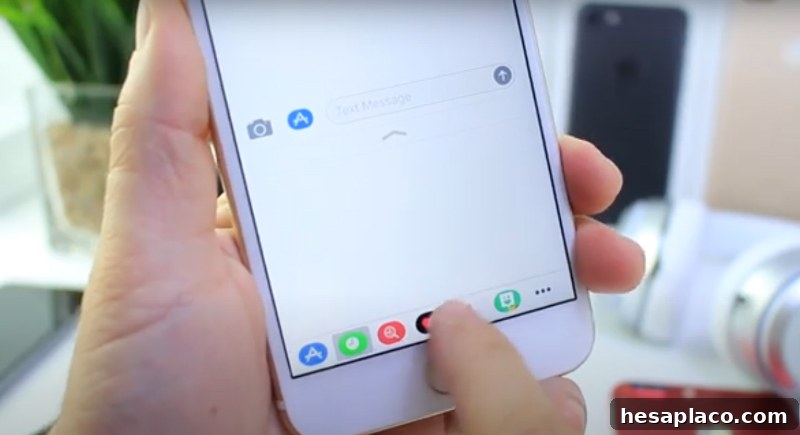
If you miss the physical Home button or need on-screen shortcuts, enable AssistiveTouch: Settings > Accessibility > Touch > AssistiveTouch. A small floating button appears that gives quick access to the Home screen, Control Center, notifications, custom gestures, and more—helpful for accessibility or for anyone who prefers a virtual home button.
Customize Control Center for Faster Access
Credit: Facebook
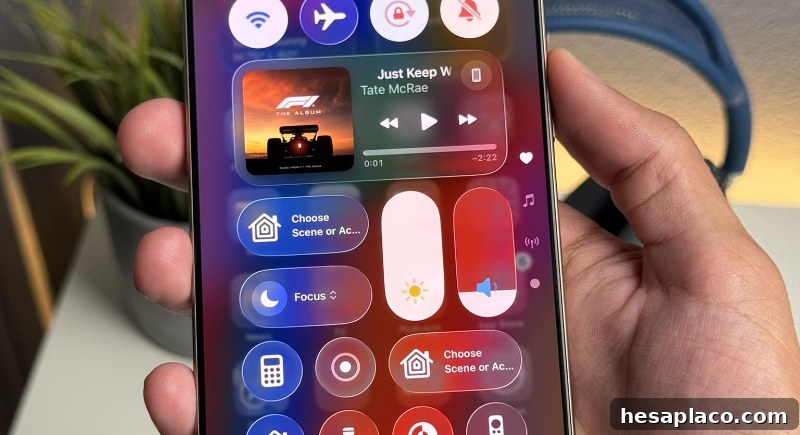
Your Control Center is customizable. Go to Settings > Control Center to add, remove, or rearrange controls so the tools you use most are always one swipe away. You can include accessibility shortcuts, screen recording, a hearing control, or any other available controls to suit your workflow.
Name Group Chats and Set a Photo
Credit: Youtube
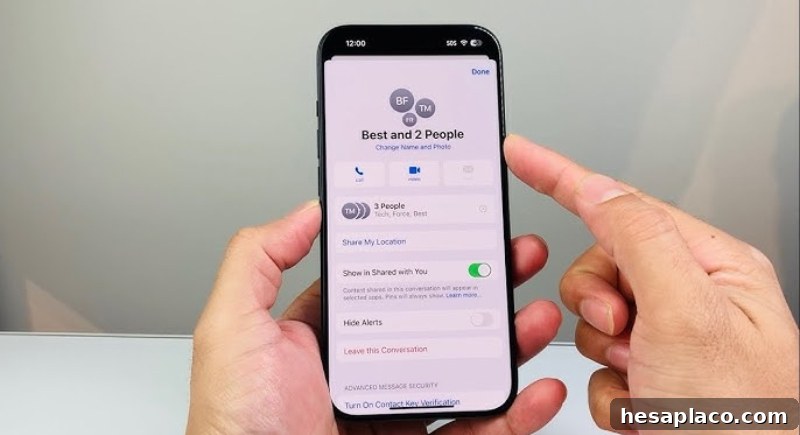
To better organize group conversations, give the thread a name and photo. Open the group chat in Messages, tap the names at the top, choose Change Name and Photo, then select a name, emoji, or image. Everyone in the group who uses iMessage will see the change, which reduces confusion when you’re part of multiple active groups.
Shake to Undo Typing Mistakes
Credit: Youtube
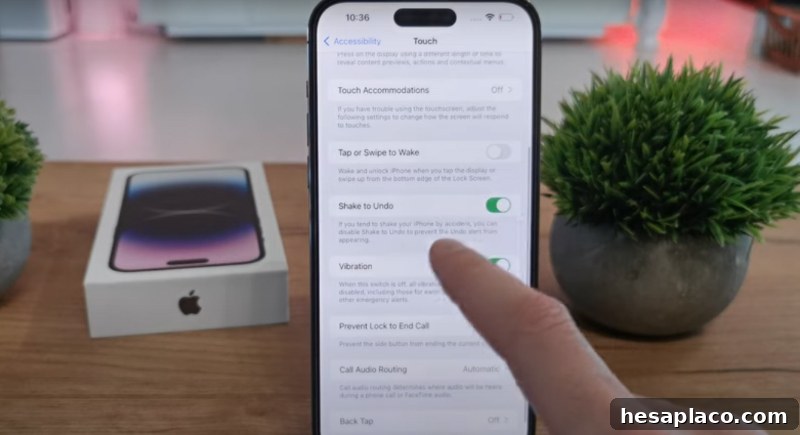
Made a typing error? Shake your iPhone to bring up an Undo/Redo prompt. This works in Notes, Mail, Messages, and other text fields. If the motion gesture is too sensitive, you can disable it under Settings > Accessibility > Touch > Shake to Undo.
Use Google Maps Offline for Navigation
Credit: Youtube
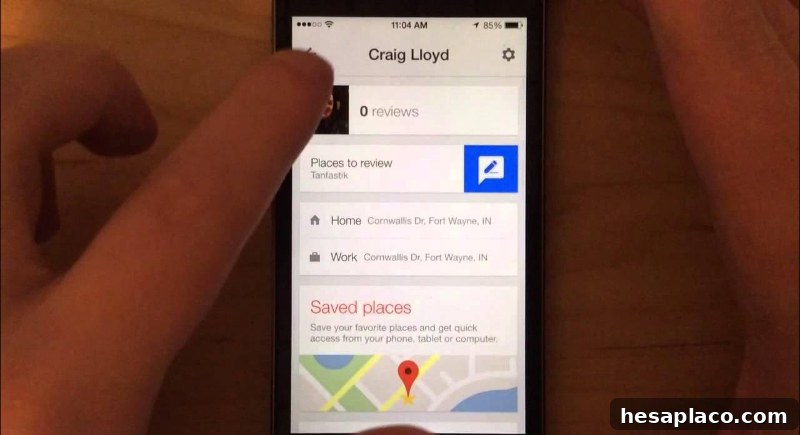
When traveling where cellular service is unreliable, download offline maps in Google Maps. Tap your profile picture, choose Offline Maps, select an area to download, and follow the prompts. Once stored, you can search, get directions, and navigate without a data connection—handy for hiking, rural driving, or international trips with limited roaming.
Get Siri to Read Your Emails and Messages
Credit: Youtube
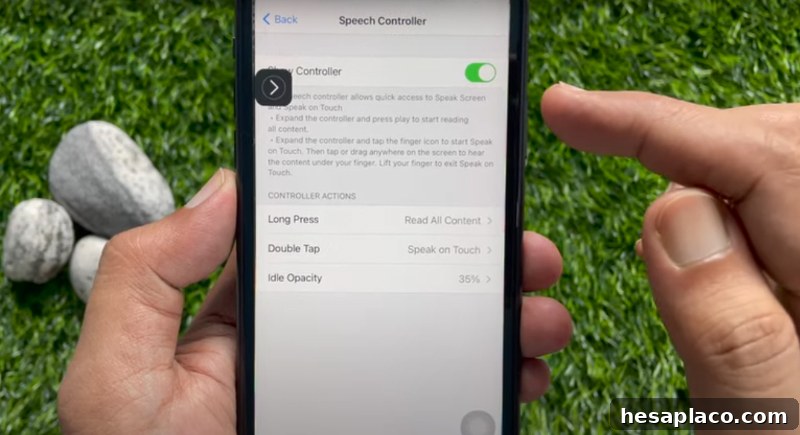
If your hands are occupied, ask Siri to read new messages or emails aloud. Siri can read your latest texts and messages sequentially and can even help you reply by voice. It’s convenient while driving or when you can’t pick up your phone.
Clearing Out iPhone RAM
Credit: Youtube
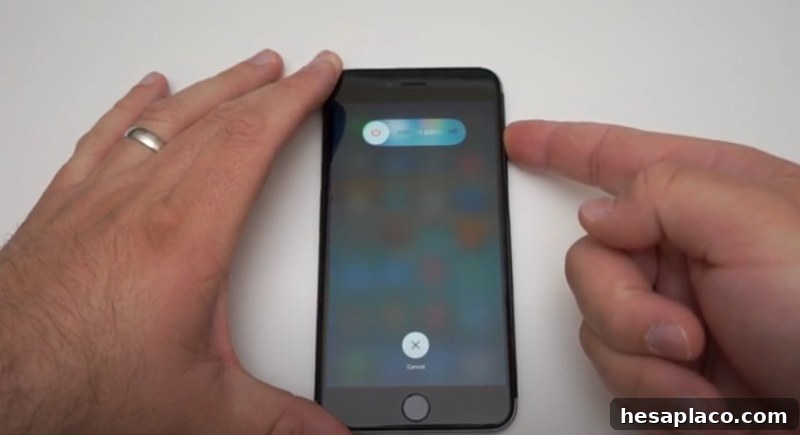
If your iPhone feels sluggish, a quick refresh of temporary processes can help. Enable AssistiveTouch, then press and hold Volume Up and the Side button until the power-off slider appears. Use the AssistiveTouch menu to tap Home. This sequence forces a soft refresh of background processes; it won’t free storage but can improve responsiveness until a normal restart or software update is performed.
These tips cover small but useful features that make the iPhone easier and more efficient to use. Try a few that fit your routine—you may find a new favorite shortcut that changes how you interact with your device daily.